Showing posts with label command line. Show all posts

Saturday, April 7, 2012

How to Secure Windows 7 Desktops

Print Friendly and PDF


London
Overview of Security Management
Key Security Features in Windows 7
  • Windows 7 Action Center
    • Centralized reporting center for users to keep track of issues and messages about their local computer
    • Categorized by severity to get action items and events 
    • Color-coding for severity alerts
  • Encrypting File System (EFS)
    • About encrypting information while it’s at rest (theft of laptops)
    • A built-in encryption tool for Windows files
  • Windows BitLocker and BitLocker To Go
    • Introduced with Windows Vista, protects data on a computer exposed to unauthorized physical access
    • Available in Enterprise and Ultimate editions of Windows 7
    • Locks the operating system and removable drives such as USB drives and portable hard drives
    • Renders data inaccessible when drives are decommissioned or recycled
  • Windows AppLocker
    • Restricts the types of applications you can run and install
    • Allows administrators to specify the apps that are allowed
  • User Account Control
    • Checks for permissions when performing necessary daily tasks
  • Windows Firewall with Advanced Security
    • Restricts unsolicited traffic coming and going
    • Security rules to provide protection from malware 
  • Windows Defender
    • Prevents and removes all forms of malware 


Sunday, February 12, 2012

Storage Management and FSRM


File Server Resource Manager (FSRM) is a new suite of storage management tools in Windows Server 2008 R2.

There are many challenging aspects to storage management:

  • Some organizations have growth requirements anywhere from 60-100 percent per year
  • Critical data must always be available
  • Organizations must comply with regulatory requirements
  • The amount of storage-intensive apps on the market has increased
  • How to determine existing storage capacity and usage trends
  • How to determine whether usage supports organizational goals
  • Defining and implementing storage policies
  • Adjusting policies such as restricting employee personal file storage as capacity needs grow

How do we address capacity and storage management?

Friday, January 27, 2012

Configure and Manage Distributed File System (DFS)

Print Friendly and PDF
If you have multiple file servers deployed, how do you connect to the file servers?

DFS is a service that connects file shares together into a single namespace. The files can reside on different computers and provides client access to the files in a transparent manner.

Tuesday, January 17, 2012

Configuring IPSec

Even though you can encrypt your data stored on your hard drive, how do you protect the data while it is in transmission? IPSec can do this. 
IPSec (Internet Protocol Security) is a set of protocols that give you a level of encryption between two computers while it is being transferred over an unsecured network.  IPSec uses security services and digital certificates with public and private keys. As stated in Mark Russinovich's and David Solomon's Windows Internals Book:
Internet Protocol Security (IPSec), which is integrated with the Windows TCP/IP stack, helps to protect unicast (IPSec itself supports multicast, but the Windows implementation does not) IP data against attacks such as eavesdropping, sniffer attacks, data modification, IP address spoofing, and man-in-th-middle attacks (when the identity of the remote machine can be verified, like a VPN). You can use IPSec to provide defense-in-depth against network-based attacks from untrusted computers; certain attacks that can result in the denial-of-service of applications, services, or the network; data corruption, data theft, and user-credential theft; and the administrative control over servers, other computers, and the network. IPSec helps defend against network-based attacks through cryptography-based security services, security protocols, and dynamic key management.
IPSec was originally designed to secure traffic over public networks. However, IPSec is being used increasingly on private networks. Windows Server 2008 provides enhancements to the IPSec rules.

Wednesday, November 9, 2011

WINS and Server 2008

Overview of the Windows Internet Name Service 

WINS is a NetBIOS Name Server (NBNS). Windows hosts support two types of names, host names and NetBIOS names. 


In a Windows OS, network services can be requested using Windows Sockets, Winsock Kernel, or NetBIOS. If Windows Sockets or Winsock Kernel is requested, the host name is used. Windows Sockets is used to access network services in many applications. The newer applications that were designed for Windows 7 and Windows Server 2008 R2 use Winsock Kernel.  If NetBIOS is used, the application uses a NetBIOS name.

Thursday, November 3, 2011

Troubleshooting tips for DNS

Time to Live, Aging, and Scavenging
Feature
Description
Time to Live (TTL)
How long a DNS record will be valid
Aging
When records inserted into the DNS server reach expiration and are removed
Scavenging
Remove old DNS records

Time to Live – TTL depends on the type of DNS record. MX records have a longer TTL than a host A record, for example. The TTL can be modified.
Resource Record Types
Aging – DNS record removal helps to keep DNS accurate and using less disk space.
Scavenging – If DNS records have not been aged, we can force a database cleanup by removing stale records. This can be done by scavenging DNS records. Stale resource records can slow down DNS lookups and cause errors.

Wednesday, October 26, 2011

Tips on How to Configure DNS Zones


DNS zones allow domains to be logically configured and managed in a structured way. A zone hosts all of a domain or parts of a domain and its subdomains.

Take for example, pcrepairnorthshore.com. Imagine pcrepairnorthshore.com is divided into two zones. The first zone hosts www.pcrepairnorthshore.com and ftp.pcrepairnorthshore.com.  Let’s pretend we have a site called offsite.pcrepairnorthshore.com. We delegate it to a new zone that hosts the offsite.pcrepairnorthshore.com and its subdomains ftp.offsite.pcrepairnorthshore.com and www.offsite.pcrepairnorthshore.com.

Wednesday, October 19, 2011

Configure the DNS Server Role

Components of a DNS Solution
  • DNS Clients. Windows, Unix, Linux, Macs operating systems. Windows systems also maintain a local DNS Resolver cache.
  • DNS Servers. Host a distributed heirarchical database of resource records stored by the DNS zone and include:

Friday, October 14, 2011

Installing a DNS Server Role in Windows Server 2008


DNS recognizes computers by alphanumeric names and translates the names to the numerical IP addresses recognized by computers and networking equipment. DNS resolves the computer names to the IP addresses.
DNS is installed as a role in Windows Server 2008. It can be installed with Server Manager and with the DNS Server command from the command prompt. The preferred way is to install the DNS Server Role when Active Directory Domain Services is installed, if you want to integrate the DNS domain namespace with the AD DS domain namespace. In addition, Server Core can act as a DNS Server.

Sunday, October 9, 2011

Overview of Server Roles and Features in Windows Server 2008

Server Roles describe the primary functions of a server in Windows Server 2008. On a server, there can be one or more server roles. For example, you can have a DNS server or a Web server, or a server comprising multiple roles.


Monday, September 26, 2011

Disk Management for Windows 7


Partitioning Disks
Master Boot Record (MBR) Disk:
  • Contains the partition table for the disk and a small amount of executable code called the master boot code.
  • The computer BIOS examines the MBR to determine which partition on the disks is marked as active and returns the information so you can boot up.
  • 2 terabyte (TB) limit.
  • You can have four partitions for each hard drive. The boot.ini contains the the list of operating systems and points to the one you want to boot (‘multi-boot’ systems). Virtualization does away with ‘multi-boot’, not needed.
  • Active partition contains the OS startup files.

Tuesday, July 19, 2011

Friday, March 11, 2011

Sysinternals Advanced Malware Cleaning Review

_MG_0853Image by rwoan via Flickr

Trying to cleanup malware from your computer? Advanced Malware Cleaning, located on the Windows Sysinternals website, is a must watch video from Windows expert Mark Russinovich. Mark was the co-founder of Sysinternals before it was acquired by Microsoft in 2006.

Mark gives an overview of how SysInternals tools work, such as Process Explorer, along with using the AutoRuns utility,  SigCheck, and TCPView Utility to discover where malware is hiding on your computer and how to clean it. Mark talks about Rootkits and his own RootkitRevealer tool, an advanced rootkit detection utility.

Mark discusses the future of malware and how malware is becoming harder and harder to detect.

Wednesday, February 23, 2011

How to run Windows Memory Diagnostics Tool

The 536,870,912 byte (512×2 20 ) capacity of t...Image via Wikipedia


You are having various application problems on your computer. You think the computer's RAM might be failing and you want to check it using the Windows Vista Memory Diagnostics tools. 


How do you run the Windows Vista Memory Diagnostics tools?


Monday, February 21, 2011

Computer Lost Internet Connection

my ip address

Most home computers connect to the Internet through a Dynamic Host Configuration Protocol (DHCP) server. This means the IP address is automatically assigned by the server (most likely your router).  IP addresses are automatically assigned (leased) for a time determined by your ISP.  The time varies, depending on the ISP.  When your lease expires you lose your internet connection.


Friday, February 18, 2011

Problems with your DVD-ROM CD-ROM drives

You are having problems accessing your DVD-ROM and CD-ROM drives. The problem happened after you opened an email attachment. You need to make sure your drivers are the correct versions. However, you do not know how to do that. What should you do that will allow you to determine whether correct versions of the drivers are installed?

Run the DRIVERQUERY command-line tool.

  • Open a command prompt window.
  • Type driverquery /? (to get a list of the driverquery options)
  • Type driverquery | more (to see a pageview display of drivers). note: the | sign on the keyboard is the broken line above the \
Driverquery is a quick way to generate a of list of installed drivers on your system.  However, in my opinion, a better way is to use DriverView, a free utility from NirSoft. DriverView works under all versions of Windows except for 98 and ME.


    Enhanced by Zemanta

    Wireless enabled and no internet connection

    The following is a repost of an unusual problem encountered a few years ago while troubleshooting a friend's Windows Vista laptop:

    I installed a free anti-virus software.  After the installation, I encountered one problem after another.  Windows Firewall connection turned off and became disabled.  I was unable to connect to the Internet even though my wireless connection was showing as enabled.  Internet Explorer was showing a "Page cannot be displayed" error.

    I googled "wireless connection showing enabled and no Internet", as I had never before encountered that problem. A blog entitled, Repair and reset Windows Vista TCPIP Winsock Catalog Corruption popped up and described the situation. It was easy and solved the problem in five short steps.  Be sure to click on the link for an explanation as to what caused the Winsock corruption.  This fix could save you a lot of potential headache. Here is the Microsoft Knowledge Base article for  How to determine and to recover from Winsock2 corruption in Windows Server 2003, in Windows XP, and in Windows Vista.


    Tuesday, February 15, 2011

    Find IP address of Network Printer

    computer network IP addressImage via Wikipedia
    If the printer has an Ethernet port, then it probably has a menu button to configure settings and you will have an option to display the IP address of the printer.

    If there is a computer set up to use the printer:

    1. Go to Start
    2. Go to Control Panel (In Vista, type Printer in the search box on the Start menu)
    3. Go to Printers and Faxes
    4. Right click the printer
    5. Click Properties
    6. Click the Ports tab to display the IP address
    You can ping your network from a computer connected to the network and look up an arp table:
    1. Click Start
    2. Click cmd
    3. Type ipconfig to find your network address.  Most of the time it will be 192.168.1.1 (the default gateway) on a home network.
    4. Ping your network using the broadcast address.  If your network address is 192.168.1.1, the broadcast address is 192.168.1.255 and you would ping 192.168.1.255.  If your network address is 192.168.2.1, the broadcast address is 192.168.2.255 and you would ping 192.168.2.255.
    5. Then type arp -a to see the devices connected to the network.  One of the listed devices is the printer.
    Enhanced by Zemanta

    Sunday, February 13, 2011

    Troubleshooting Workgroup Connections

    A common network configuration is a workgroup consisting of a few computers.  Each computer is connected to a router or hub, through an Ethernet cable or wirelessly, in order to share files or printers in a small office or home.  Problems connecting in this type of network can occur for many reasons.

    Part of the troubleshooting process is to verify the computer name and the workgroup name.  The user could have changed the name of the workgroup or name of the computer in the Systems Properties dialog box, ran Network Connections Wizard, or Network Setup Wizard.

    One way of checking the computer name, user nameworkstation domain, and other info is by using the command-line utility net config workstation.

    Go to Start
    Click Run
    Type cmd to access the DOS command prompt
    Type net config workstation
    Press Enter

    Enhanced by Zemanta

    Tuesday, February 8, 2011

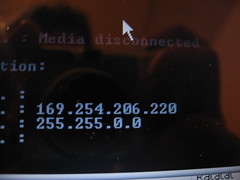
    Need an IP Address

    You are having network connectivity issues.
    1. You have ruled out problems with physical connections such as your cables and network adapters.
    2. Your Windows Troubleshooter in the Windows Help and Support Center pointed to a TCP/IP address problem.  
    Use the Ping command. TCP/IP  is a network protocol used in the Windows environment. TCP/IP automatically installs itself when it detects a network adapter. The Ping command allows you to check for connectivity between devices on your network.

    You should Ping the loopback address first. The loopback address is 127.0.0.1. IP addresses that have 127 in the first octet are called loopback addresses. If this check fails, the TCP/IP configuration for your computer is incorrect. To ping the loopback address: