Showing posts with label Backup. Show all posts

Sunday, February 19, 2012

Configuring Availability of Network Resources

Backing Up Data

Windows Server 2008 has an additional role installed called Windows Server Backup (WSB). Backup consists of a Microsoft Management Console (MMC) snap-in, command-line tools, and Windows PowerShell cmdlets.


New Windows Server Backup (WSB) Features
  • You can protect the entire server without using a separate backup and recovery technology
  • Backup entire server or selected volumes
  • Use wizards, tools, and the Complete PC Restore feature to assist in recovering a server
  • Easier to restore to a point in time
  • Can use Backup to provide application recovery
  • Improved scheduling utility
  • Better remote administration both from the GUI and through Windows PowerShell
  • Windows PowerShell brings us extensive command line support


Wednesday, January 5, 2011

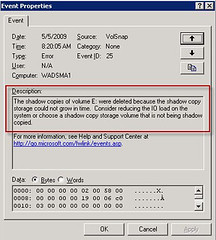
Volume Shadow Copy

Windows Shadow CopyImage by Bruce Elgort via Flickr

What situation would the IT Department use a volume shadow copy, instead of a backup strategy?

If the user accidentally overwrites a presentation he spent all day creating. Note that shadow copies maintain a maximum of 64 copies of a file. The copy schedule affects the amount of time that the oldest copies are deleted. Microsoft recommends writing shadow copies to a different volume on a different drive than the shared folders.

You should not write shadow copies to compressed volumes. Compressed volumes cannot have an allocation unit size of greater than 4 KB. Using a volume with an allocation unit size of less than 16 KB can result in loss of shadow copies.
How Volume Shadow Copy Service Works

Enhanced by Zemanta

Thursday, June 11, 2009

Creating an ASR Disk in Windows XP


The boot.ini file is the file that the OS looks at to determine where the files are to boot the OS. It is in the root of the C drive.

You should make sure the VIEW is set in Folder Options to see all of the operating and system files so that you can see the boot.ini file.

Press F8 to access Advanced boot options:
  1. Safe Mode
  2. Safe Mode with Networking
  3. VGA Mode
WinXP has a tool that allows you to backup the OS to disk. This disk allows you to use this along with the Windows CD to get you back where you were before the system crashed. This doesn't back up data.
It creates an Automated System Recovery Disk. This allows you to recover from a hard disk system crash. You should create an ASR as soon as you have a system created, especially if you have a complicated configuration.


  • Click START/ALL PROGRAMS/ACCESSORIES/SYSTEM TOOLS/BACKUP/ADVANCED MODE/Automated System Recovery Wizard/click NEXT.


  • Create on floppy or USB external drive.

If you need to recover, insert the windows CD and the ASR recovery disk at the same time so they can talk to each other.
Enhanced by Zemanta