Showing posts with label Vista. Show all posts

Sunday, January 8, 2012

Configuring Network Access Protection (NAP)


How do you protect yourself from computers that do not meet your health requirements on your network?

Network Access Protection (NAP) with Windows Server 2008:

  • A feature of Windows server 2008 that enforces health-requirement policies on client computers running:
    • Windows XP (SP3)
    • Vista
    • Windows 7
    • Windows server 2008
    • Windows server 2008 R2
  • Ensures client computers are compliant with policies such as anti-virus and security policies on a granular level, based on who the client is and the group to which the client belongs.
  • Remediation servers can offer support for computers not meeting health requirements, and to automatically bring the client back into compliance and dynamically increase its level of network access.
  • You are able to integrate NAP’s features with software from other vendors or with custom programs.
  • You can customize your health enforcement solutions. NAP includes an application programming interface (API) for developers and vendors that allows them to create customized solutions for health-requirements, network-access, and ongoing compliance.

Monday, December 19, 2011

About Network Policy Server Role Service


Installing and Configuring a Network Policy Server
The Network Policy Server (NPS) role in Windows Server 2008 replaces the Internet Authentication Service (IAS). Windows Server 2008 R2 can authenticate clients using Network Policy Server (NPS). NPS provides an additional layer of security for your network.

  • NPS provides support for the Remote Authentication Dial-in User Service protocol and can be configured as a RADIUS server or proxy. 
  • NPS also provides functionality that is essential for implementation of Network Access Protection (NAP)
  • NPS is used for enforcement for:

Friday, December 2, 2011

About IPv6 TCP/IP and Windows Server 2008

Overview
Web Running Out of Addresses

In the mid 1990s, we started to run into an ever shrinking pool of IPv4 addresses. According to the Wall Street Journal, February 1, 2011, was the week the last batch of Internet addresses was doled out.

Because of the growing proliferation of network devices and the expanding Internet, Internet Protocol version 6 (Ipv6), is built into Windows Server 2008. Ipv6 is a new suite of protocols developed to ensure growing Internet client needs. The IPv4 scalability will no longer meet the challenges ahead.

Wednesday, September 21, 2011

Prepare to Install Windows 7

Editions
Windows 7 Starter – System Builders Only, 32bit only, 2GB only

Windows 7 Home Basic/Value Edition - Emerging Markets, 32-bit, 64-bit, 4GB, 8GB


Windows 7 Home Premium (Aero) multi-media - Retail, System Builders, 32-bit, 64-bit, 4GB, 8GB


Windows 7 Professional – Business edition for small, lower mid-market, 32-bit, 64-bit, 4GB, 192 GB

Windows 7 Enterprise – Business edition for large enterprises, volume licensing, 32-bit, 64-bit, 4GB, 192 GB

Windows 7 Ultimate – Retail + System Builders, All features, 32-bit, 64-bit, 4GB, 192 GB 

Windows 7 N Editions* (as above but without Media Player) - European Union Only, 32-bit, 64-bit, 4GB, 16GB, 192 GB
*Windows N Editions include Windows 7 Home Premium N, Professional N, and Ultimate N

Wednesday, February 23, 2011

How to run Windows Memory Diagnostics Tool

The 536,870,912 byte (512×2 20 ) capacity of t...Image via Wikipedia


You are having various application problems on your computer. You think the computer's RAM might be failing and you want to check it using the Windows Vista Memory Diagnostics tools. 


How do you run the Windows Vista Memory Diagnostics tools?


Tuesday, February 15, 2011

Find IP address of Network Printer

computer network IP addressImage via Wikipedia
If the printer has an Ethernet port, then it probably has a menu button to configure settings and you will have an option to display the IP address of the printer.

If there is a computer set up to use the printer:

  1. Go to Start
  2. Go to Control Panel (In Vista, type Printer in the search box on the Start menu)
  3. Go to Printers and Faxes
  4. Right click the printer
  5. Click Properties
  6. Click the Ports tab to display the IP address
You can ping your network from a computer connected to the network and look up an arp table:
  1. Click Start
  2. Click cmd
  3. Type ipconfig to find your network address.  Most of the time it will be 192.168.1.1 (the default gateway) on a home network.
  4. Ping your network using the broadcast address.  If your network address is 192.168.1.1, the broadcast address is 192.168.1.255 and you would ping 192.168.1.255.  If your network address is 192.168.2.1, the broadcast address is 192.168.2.255 and you would ping 192.168.2.255.
  5. Then type arp -a to see the devices connected to the network.  One of the listed devices is the printer.
Enhanced by Zemanta

Thursday, February 3, 2011

Migrating to a new computer using Windows Easy Transfer

Windows Vista is one of Microsoft's latest cli...Image via Wikipedia

You have just purchased a new computer because your old computer has a version of Windows that is no longer supported and you want a faster computer. You have files and settings on your old computer that you desperately want to retain. How can you get the files and settings from your old computer over to your new computer without having to do it manually?

Wednesday, January 26, 2011

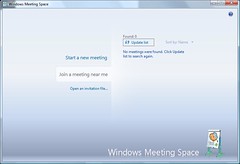
Windows Meeting Space in Windows Vista

Windows Vista Windows Meeting SpaceImage by CokeeOrg via Flickr
Windows Meeting Space is a peer-to-peer collaboration program that allows you to share documents, programs, or your desktop with others.

You can share your desktop or a program with other meeting participants.  You and the other meeting participants can share and co-edit documents.  One saved change is replicated immediately to every other meeting participant.  Any file or application can be broadcast or streamed, not just Microsoft applications. The administrator has the ability to limit the file types that can be shared.  The built-in logging feature can audit activity and write to the event log during a session.  You can pass notes among the participants.  You can connect to a network projector for a presentation.

Windows Meeting Space automatically creates an ad hoc network, if it can't find an existing network. You can start a new meeting or join a meeting someone else has set up.  You can invite others on the network to join.  You have password protection and the session initiator decides who can join the session.

Windows will automatically configure Windows Firewall the first time you start Windows Meeting Space.  You will be prompted to setup and enable People Near Me.

Tuesday, January 11, 2011

Understanding Task Manager in Vista


Task Manager is built into Windows to view and manage running application programs and processes.  You can use Task Manager to end programs and monitor performance.

You can choose how to view Task Manager by selecting the Options menu in Task Manager.  There are three ways to view Task Manager:

Monday, January 10, 2011

How to get XP Printer Drivers to work in VISTA


Go to the Windows Compatibility Center and determine what will work with Windows Vista and if there is an upgrade.  The site is user friendly and assists you with any compatibility questions you have and guides you on the appropriate path for upgrading your software and/or hardware.
Enhanced by Zemanta

Thursday, November 18, 2010

Change the Behavior of the Elevation Prompt in Windows Vista


You are the administrator of your computer and you want to keep the elevation prompt from displaying when you try to make configuration changes.   How do you keep the prompt from displaying?

UAC is a new feature for Windows Vista that prevents unauthorized changes and silent installations.  The message displays to alert the user and get authorization before continuing with the configuration change.  This helps to prevent viruses from making changes to the computer without the user's permission. 

  • Open Contol Panel
  • Open Administrative Tools
  • Double click on Local Security Policy
  • On the Local Policies Tab, go to Security Options
  • Click on User Account Control:  Behavior of the elevation prompt for administrators in Admin Approval Mode
  • In the drop down box, select Elevate without prompting
  • Click ok
Getting Started with User Account Control on Windows Vista
Enhanced by Zemanta

Tuesday, November 16, 2010

Working Offline in Windows Vista


You are leaving town to attend a business meeting tomorrow.  You will not have access to the network, but need to access some files in your folder at work while you are at the business meeting.


How do you configure Windows Vista to enable you to access the file in your work folder?


You do this by utilizing the Offline Files feature of Windows Vista.  Vista copies the network folders and files and places them on your computer.  When you are offline, Vista uses the local folders and syncs them with the network when you reconnect.

  • Go to Control Panel and select Offline Files - Classic View.
  • Enable Offline Files.
  • Restart your computer.
  • Open Windows Explorer (Windows button + E key) and navigate to the network file folder you are interested in.
  • Right click the folder and select Always Available Offline.
(If your internet connection is down or slow, you might want to work with the offline files stored on your computer instead of the network.  To do this, open the network file that you have made available offline, and on the Toolbar, click Work Offline.  When you are finished, click Work Online to sync and make the file available on the network again.)

Working with network files when you are offline
Enhanced by Zemanta

Monday, November 15, 2010

Send and Receive Faxes

Windows Vista is one of Microsoft's latest cli...Image via Wikipedia

Below is the Microsoft link detailing the Windows Vista Fax and Scan Wizard.  If you are using a fax server, make sure you know the network address of the fax server, for example file://companyfaxserver/, and are connected to the Network.  If you are using a fax modem, make sure you have an analog phone line attached to your computer.  A digital phone will not work.  If you have an internal fax modem, Windows will detect it during setup.  If you have an external modem, connect it to the computer and turn it on before running the wizard.

Open Windows Fax and Scan
At the bottom of the left pane, choose Fax
Choose Fax Accounts from the Tools Menu
Follow the Wizard to set up a fax server or a fax modem

Set up your computer to send and receive faxes
Enhanced by Zemanta

File and Printer Sharing in Windows Vista

Windows Vista is one of Microsoft's latest cli...Image via Wikipedia


You would like to set up a Windows Vista computer in your home office to host file and printer sharing. 
You need to do this while maintaining your security.

Go to the Network and Sharing Center and make sure file sharing and printer sharing is turned on.  Configure a share name for the Folder on the Sharing tab in the Folder's Properties Dialog box.  Configure Permissions in the Security tab of the Properties Dialog box.  Permissions are required to make the folder available over the network and identify who has access and what their rights are.  See the Microsoft link below to find out other ways to share files.

File Sharing Essentials
Enhanced by Zemanta

Thursday, May 6, 2010

Corrupt Registry Repair in Windows Vista

Internet Explorer 7 for Windows Vista tab viewImage by niallkennedy via Flickr
How to repair a corrupt registry in Windows Vista
Enhanced by Zemanta

Scan a Windows Installation Offline using SFC

System File CheckerImage via Wikipedia

System File Checker (SFC) scans and checks all Windows Resource Protected (WRP) resources. Windows Vista added the following functionality to the SFC tool:
  • Ability to scan a single file
  • Ability to scan a Windows installation offline


Using System File Checker (SFC) to Fix Issues
Enhanced by Zemanta

What to do if Windows Vista not starting correctly

Windows Vista InstallationImage by Fred​ via Flickr
The following link contains the full instructions for a Windows Vista installation, rather it be a clean install or a reinstallation.  If you are doing a reinstallation, your files are automatically saved in a windows.old folder that you can migrate to your new os after the install.  Instructions are included in the link.


Windows Vista not starting correctly
Enhanced by Zemanta

Sunday, February 14, 2010

Parental Controls in Vista


You need to restrict your son from playing unrated games on the computer for anyone that is 10+ or higher in age.  How do you do this?

Under Game Restrictions, select the Block Games with No Rating option.  Also, select the Everyone option.  The Everyone option allows games rated "E" for Everyone and "EC" for Early Childhood to be played.

Windows Vista Parental Controls
Enhanced by Zemanta

Thursday, June 25, 2009

Windows version


Here are three ways to find out your version of Windows:

  • Go to START/RUN/Winver.exe (Windows version identification)
  • Control Panel/Performance and Maintenance/System (Systems Properties Dialog box)
  • Go to START/RUN/WinMSD.exe (system information program)


Enhanced by Zemanta