Tuesday, February 1, 2011

Standby mode and Screen Savers

You tried to configure your XP laptop to go into Standby after 15 minutes, but it is not working. What is wrong?

Is a screen saver configured? If so, is it a Direct3D screen saver? Direct3D screen savers sometimes prevent a computer from entering standby mode. This is because a computer goes into standby only when the CPU has been idle for the time that is configured in Power Options. When a 3D screen saver runs, the CPU begins processing. This is a known issue in MS Windows XP and a hot fix is available.
Enhanced by Zemanta

Sunday, January 30, 2011

Autoruns -Another awesome freee utility from SysInternals!

The sequence of components activated during th...Image via Wikipedia


This week I received an email from my brother complaining about his Windows XP computer's slow start up time. He said the normal startup time was about 40 minutes! Ray said, "the computer runs fine once it starts, the problem is totally within the boot up process".

Well, big sister to the rescue. Or, more like it, Sysinternals Autoruns to the rescue. My brother is in South Carolina, and since I am in Long Island, I used GoToAssist to do a remote dial-up session to his computer. After the session started, I quickly went to Live SysInternals to download Autoruns, written by the great Mark Russinovich and Bryce Cogswell, co-founders of Sysinternals, before it was acquired by Microsoft in 1996.

With Autoruns, you can check to see what is actually running at startup on your Windows computer, and I mean everything that's running at startup. Autoruns shows you much more than the included Msconfig Windows utility. You will be surprised by the number of third party items loaded into your system at startup. The longer you have had the computer, the more 'stuff' will be configured into registries and directories and loading automatically when you boot up.

Select the Options menu and click on Include Empty Locations, this will cause Autoruns to show all the locations it inspects. Under the Options menu, you also have the ability to hide Microsoft entries, a good thing to do so you won't deselect one of the needed system files by accident from your startup.  You should always combine the option to hide Microsoft entries with the option to Verify Image Signatures, to prevent hiding malicious programs.  Uncheck the unwanted third party items. If you are unsure about a particular item, Google it to see what it is.

I went through the Autoruns and unchecked many, many boxes. After closing Autoruns, I proceeded to restart the computer. This disconnected my GoToAssist session, so I waited for Ray to tell me how fast the boot up was. Ray was ecstatic. He has never seen such a quick boot up on a Windows computer.

I also have Autoruns loaded on my Windows Vista computer. My boot up is almost instantaneous, actually faster than my Macbook. And, I never thought I'd see that day. Thank you Mark Russinovich!  Windows is getting better and better!

quick-tip-manage-the-autorun-process-in-windows-7-with-sysinternals-autoruns


Enhanced by Zemanta

Thursday, January 27, 2011

An easy way to increase Vista performance using ReadyBoost

1 GB of SDRAM mounted in a personal computer. ...Image via Wikipedia
Whenever we think about increasing our computer's performance, the first thing we think of is increasing RAM (memory). For the novice computer user, opening up the case and installing memory is out of the realm of consideration. An easy way to increase the memory is to use the ReadyBoost feature of Windows Vista.
When you try to do things on your computer that don't have enough RAM, the system uses the paging file. The paging file is a small area on the hard disk that is used and is called virtual memory. 
When information is swapped back and forth between physical and virtual memory, it is called paging. The more memory the system has, the less the system has to access the hard disk to retrieve data, and the faster the performance. However, more RAM is not always a good option. Your system might not have the capability to hold more RAM, not to mention the fact, that RAM is not cheap.

Wednesday, January 26, 2011

Windows Meeting Space in Windows Vista

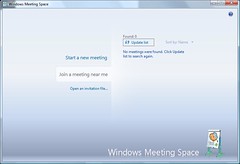
Windows Vista Windows Meeting SpaceImage by CokeeOrg via Flickr
Windows Meeting Space is a peer-to-peer collaboration program that allows you to share documents, programs, or your desktop with others.

You can share your desktop or a program with other meeting participants.  You and the other meeting participants can share and co-edit documents.  One saved change is replicated immediately to every other meeting participant.  Any file or application can be broadcast or streamed, not just Microsoft applications. The administrator has the ability to limit the file types that can be shared.  The built-in logging feature can audit activity and write to the event log during a session.  You can pass notes among the participants.  You can connect to a network projector for a presentation.

Windows Meeting Space automatically creates an ad hoc network, if it can't find an existing network. You can start a new meeting or join a meeting someone else has set up.  You can invite others on the network to join.  You have password protection and the session initiator decides who can join the session.

Windows will automatically configure Windows Firewall the first time you start Windows Meeting Space.  You will be prompted to setup and enable People Near Me.

Tuesday, January 25, 2011

BGinfo - One COOL Desktop background from Sysinternals!

Technical Fellow Mark Russinovich talks about ...
Image by Microsoft PDC via Flickr


Imagine this scenario.  You have called tech support and the technician is asking you what version of Windows is on your desktop computer.  While troubleshooting, the technician asks how much memory is installed and how much hard drive space is available. 
Imagine this scenario.  The IT department is installing new wireless network cards in all employee laptops.  You are a technician and you have been assigned the task of verifying the laptops that need new network adapters. 
In either case, precious minutes are wasted scrolling though several diagnostic screens in control panel to get to the information, or you waste time asking the user questions they probably have no answer for.
BGinfo is a really cool, free, Sysinternals utility written by Bryce Cogswell. BGinfo queries the Windows system and displays information on your desktop, such as ip address, computer name, memory, volumes and free space, Mac address, etc.  BGinfo writes a bitmap on your desktop and exits.  No system resources are consumed and it does not interfere with other programs.  You can put it in your start up folder so it displays current data every time you boot.   BGinfo is customizable and even lets you select the background color and wallpaper. Voila! You have the system info right at your fingertips. 
Mark Russinovich, of Sysinternals, has written an article about BGinfo in windowsitpro magazine.  Go check Windows Sysinternals out, and while you are at it, check out some of the other free utilities these gods have written and check out some of Mark's Webcasts.  See my page autoruns-another-awesome-freee-utility.html referencing another one of my very FAVorite system utilities written by Mark Russinovich.
Tutorial of BGinfo from Sysadmingeek
Enhanced by Zemanta

Problems connecting to a host

TCP/IP stack operating on two hosts connected ...Image via Wikipedia
Users are reporting problems connecting to a host.  The firewall on the host is configured to block incoming ICMP packets.  The host is on the same IP subnet as your computer. 
What tool can be used to test whether the host is connected to the network?
You can use arping.  The arping command sends Address Resolution Protocol (ARP) packets to test connectivity.  But, since ARP is not a routable protocol, the computers must be located on the same subnet.
What is arping?

Enhanced by Zemanta

Thursday, January 20, 2011

Troubleshooting Post-Installation Issues using msconfig


The System Configuration tool, otherwise known as msconfig, can help identify problems that keep Windows from starting correctly. The System Configuration tool can be accessed through the Run dialog by typing msconfig.  The System Configuration troubleshooting tool can be launched if you have administrative rights.


Wednesday, January 19, 2011

Unable to print to a network printer

Cutaway drawing, illustration of an inkjet printerImage via Wikipedia
Three users share a Windows XP desktop computer. An inkjet is connected locally to the desktop computer. The desktop computer also connects to several laser printers over the network.
One of the users complains he cannot print to the local inkjet printer. Both of the other users are able to print to it.

What should the user do?


Answer: Install the printer while the user is logged in. When a printer is installed on a Windows XP computer that is in a workgroup or domain, the printer may need to be installed separately for each user.


Install a printer on a home network


Enhanced by Zemanta

Tuesday, January 11, 2011

Understanding Task Manager in Vista


Task Manager is built into Windows to view and manage running application programs and processes.  You can use Task Manager to end programs and monitor performance.

You can choose how to view Task Manager by selecting the Options menu in Task Manager.  There are three ways to view Task Manager:

Add New Hardware

External hard disk enclosure from behind. On t...Image via Wikipedia

  1. Today a customer brings you his computer and external hard drive.  He claims the hard drive does not work. His computer runs Windows XP Professional. After examining the hard drive manual, you discover it is not Plug and Play. The customer has the disc containing the driver files. The computer is turned on but the external drive is not connected. What steps do you take to install the hard drive so the operating system can see it?
  • Connect the external drive to the computer.
  • Turn on the computer.
  • Open Control Panel/Printers and Other Hardware
  • Click Add Hardware link.
  • Choose Add New Hardware device from the list.
  • Choose Yes I have already connected the hardware option.
  • Choose the option to select the hardware from a list.
  • Choose the hard drive from the list of common hardware types.
  • Specify the location on the disc that contains the driver files.
Enhanced by Zemanta

Monday, January 10, 2011

How to get XP Printer Drivers to work in VISTA


Go to the Windows Compatibility Center and determine what will work with Windows Vista and if there is an upgrade.  The site is user friendly and assists you with any compatibility questions you have and guides you on the appropriate path for upgrading your software and/or hardware.
Enhanced by Zemanta

Sunday, January 9, 2011

Old AOL Versions

I recently set up a customer's new desktop computer.  The desktop came with Windows 7 and the new Internet Explorer 8 browser.  The customer was not interested in using Windows Mail because she preferred AOL.  It has been years since I have even looked at AOL.  After setting up the AOL email, the customer complained she did not like the newer version, and wanted to go back to the old version she was using on her old XP desktop.

I explained to the customer that for security reasons, it was not really a good policy to return to old software versions of any kind.  Software is not only upgraded for design purposes, but many times programming problems are corrected as well as improved security, especially in email related programs like AOL.

There was no convincing the customer.  She did not want to learn a new way of handling her email application. 

I proceeded to search the AOL site for instructions on how to return to the earlier version of AOL.  AOL confirmed my suspicions that the old versions are not supported.  I relayed this information, but my customer was unrelenting.  After searching Google for awhile, I was able to find a site containing old versions of AOL for those people unwilling to change.  If you know someone that fits in that category, check out this link for your version, because "newer is not always better".


OldVersion.com because newer is not always better
Enhanced by Zemanta

Thursday, January 6, 2011

Laptop shuts down intermittently

My daughter's friend, Lily, brings her laptop to me with a complaint that the computer shuts down intermittently.  After investigating, I determine there is no fan sound coming from the laptop.  The fan has apparently quit working, causing the laptop to shut down when it over heats.  However, Lily does not want to spend the money to purchase a new fan. 

It occurred to me, that while browsing in the computer section of Staples once (one of my favorite pastimes), I saw a laptop desk tray with a fan built into it to keep the laptop from overheating, since laptops have a tendency to overheat while sitting on top of your lap.  At the time, I thought it was a gimmick that no one would ever spend the extra money on.  I quickly took a spin down to Staples and purchased one.  And, would you believe it?  It solved the problem of Lily's laptop shutting down. 

I tested by removing the laptop tray and within one minute, the laptop shut down.  I did this several times to confirm.  As long as the laptop sat on top of the laptop tray and the fan was plugged in, the computer stayed operational!  I instructed Lily to leave the fan on when she uses the laptop.  This was about six months ago.  I just spoke to her last night, and her laptop is still running fine!
Enhanced by Zemanta

How to Add Google Voice Widget to Your Website

This is an extremely cool widget you can add to your website or blog!

Google Voice

Features of Google Voice

How to Add Google Voice Widget to Your Website

Enhanced by Zemanta

NTFS Permissions when deleting folders

Figure 1: Windows Explorer's folder view in Wi...Image via Wikipedia

What is the least permission that a user should grant others that would allow them to delete folders within a share?

Modify.
Enhanced by Zemanta